Fast, SEO-Friendly Website Images: By Hand, or With One Claude Code Skill
Camera photos weigh 15–40 MB each and slow a site down. Look at every photo, give it a descriptive kebab-case name, make 2400 px masters, pre-render AVIF and WebP at fixed widths with hashed file names, serve them with a year-long cache and real alt text. This guide does it by hand, then with a free Claude Code skill.
( Before you start )
Why do raw photos make a website slow?
A client sends a folder of photos from a professional shoot. On the restaurant site I built for Café des Artistes that was 70 files, 36 megapixels each, 12–20 MB apiece, 1 GB in total, named Cafe de Artistes 07.02.26-17.jpg — with two spaces in the middle. Dropping them into public/ as they are means every visitor downloads far more pixels than any screen can show, and search engines learn nothing from the file names.
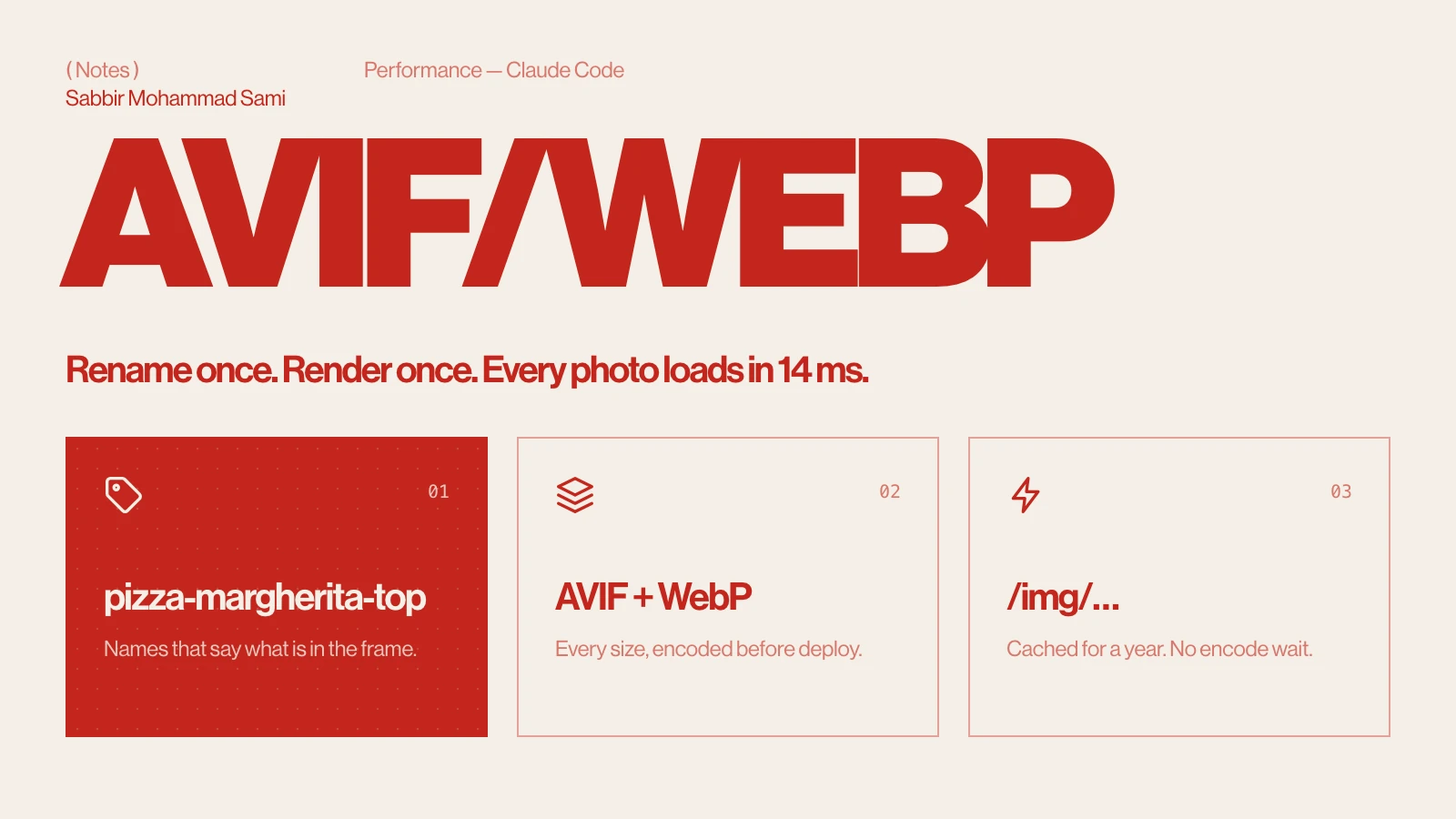
The fix is a short pipeline. Done once, the same photos ended up at 42 KB for a phone-sized AVIF and 225 KB for a full-width 2400 px hero, answered in 14 ms, with names like pizza-margherita-top and alt text that says what is in the frame.
The pipeline at a glance
| Step | What you do | Why |
|---|---|---|
| 1. Look | Contact sheets of every photo | You cannot name or place what you have not seen |
| 2. Name | category-subject-variant, lowercase, English | File names are a search signal; DSC_0042 carries none |
| 3. Masters | 2400 px long edge, sRGB, JPEG q92 4:4:4 | One high-quality source for every web size |
| 4. Check | PSNR against the original, plus a 100 % crop | Proof that nothing visible was lost |
| 5. Pre-render | AVIF + WebP at fixed widths, hashed names | No encoding when a visitor arrives |
| 6. Serve | A loader or <picture>, year-long cache | The right size and format per browser |
| 7. SEO | Alt text, OG image, sizes, hero preload | Search, social previews, LCP |
| 8. Verify | Every image URL answers 200, in a browser too | No broken images ship |
You need ImageMagick 7 (brew install imagemagick on macOS, apt install imagemagick on Ubuntu) and, for step 5, Node with sharp in the project (npm i -D sharp).
There are two ways through it. Way 1 walks the eight steps by hand, so you know what each one does and why. Way 2 does all eight with one prompt, using a free Claude Code skill you install from GitHub.
( Way 1: by hand )
Look at every photo
Make contact sheets — many small thumbnails on one image, each labelled with its file name — and go through all of them. Note the subject, whether it is portrait or landscape, whether someone’s face is visible, and which shots are near-duplicates.
mkdir -p sheets
magick montage -label '%f' raw/*.jpg \
  -tile 6x -geometry 300x300+6+6 -pointsize 14 sheets/sheet-%02d.jpg
-label has to come before the input files, or the tiles get no captions. With 40 MP originals this is slow; the skill in Way 2 decodes each file at reduced size first, which is many times faster.
Name every photo for people and search engines
Google reads image file names as a light hint about the content, and a developer reads them every day. Use a category prefix, then the subject, then the variant:
| Instead of | Use |
|---|---|
Cafe de Artistes 07.02.26-17.jpg | drink-espresso-martini.jpg |
DSC_0042.jpg | pizza-margherita-top.jpg |
IMG_20251125_1914.jpg | interior-table-setting.jpg |
final-final-2.jpg | dessert-cheesecake-sugar-dust.jpg |
- Lowercase kebab-case, English, ASCII — no spaces, dates or camera numbers.
- Variants of one subject get a suffix:
-top,-close-up,-hand,-steam. - People get their own prefix (
team-,guest-), so they are easy to leave out when a client prefers no faces on the site. - Honest names: if you are not sure what a dish is, use the safest accurate description and ask.
Write the decisions into a two-column CSV, original,name. It drives the next step and doubles as a record of which original became which file.
Make 2400 px masters, and keep the originals safe
A master is the single high-quality copy every web size is made from. 2400 px on the long edge covers a full-width image on a 1440 px retina screen. JPEG at quality 92 with 4:4:4 chroma keeps saturated reds — tomato, wine — from smearing.
mkdir -p assets/photos
magick "raw/DSC_0042.jpg" -auto-orient -colorspace sRGB -filter Lanczos \
  -resize '2400x2400>' -strip -interlace JPEG \
-sampling-factor 4:4:4 -quality 92 assets/photos/pizza-margherita-top.jpg-auto-orientapplies the camera’s rotation flag before it is stripped, so portrait shots stay portrait.-stripremoves camera metadata (often 50–100 KB of it, and sometimes GPS coordinates).assets/photos/is not served — masters are inputs, not something visitors download.
Never delete the originals. Move them out of public/ (everything there is deployed and bloats the repository) into a folder outside the project, and back it up. They are the only copy at full resolution.
Check that nothing visible was lost
Compare a master with a lossless resize of its original. PSNR (peak signal-to-noise ratio) gives one number in decibels:
magick "raw/DSC_0042.jpg" -auto-orient -filter Lanczos -resize '2400x2400>' -depth 8 ref.ppm
magick compare -metric PSNR ref.ppm assets/photos/pizza-margherita-top.jpg null:- 40 dB and above — visually lossless. Most photos land at 42–46 dB.
- 35–40 dB — normal for very fine texture (wood grain, pizza crust). Put a 100 % crop of both side by side; on the café set the 36 dB pizza was indistinguishable.
- Under 15 dB — the comparison is wrong, not the image: a rotated reference or a mismatched pair.
Pre-render AVIF and WebP at fixed widths
AVIF came out 25–50 % smaller than WebP at the same measured quality on these photos; WebP covers the few browsers without AVIF. Render both at every width the site asks for, and put a hash of the master in the file name so a changed photo gets a new URL:
// scripts/build-images.mjs — run with: node scripts/build-images.mjs
import { createHash } from 'node:crypto';
import { mkdirSync, readdirSync, readFileSync, rmSync, writeFileSync } from 'node:fs';
import sharp from 'sharp';

const WIDTHS = [256, 384, 640, 828, 1200, 1600, 2048, 2400];
const SRC = 'assets/photos';
const OUT = 'public/images/opt';
const manifest = {};

rmSync(OUT, { recursive: true, force: true });
mkdirSync(OUT, { recursive: true });

for (const file of readdirSync(SRC).filter((f) => f.endsWith('.jpg'))) {
  const name = file.replace(/\.jpg$/, '');
  const input = readFileSync(`${SRC}/${file}`);
  const hash = createHash('sha256').update(input).digest('hex').slice(0, 8);
  const { width } = await sharp(input).metadata();
  const widths = [...new Set([...WIDTHS.filter((w) => w < width), width])];
  for (const w of widths) {
    const img = sharp(input).resize({ width: w });
    const stem = `${OUT}/${name}.${hash}.${w}`;
    await img.clone().avif({ quality: 64, effort: 5, chromaSubsampling: '4:4:4' }).toFile(`${stem}.avif`);
    await img.clone().webp({ quality: 82, effort: 6, smartSubsample: true }).toFile(`${stem}.webp`);
  }
  manifest[name] = { v: hash, widths };
}
writeFileSync('data/image-manifest.json', JSON.stringify(manifest, null, 2));
Add it to package.json as "images": "node scripts/build-images.mjs". 56 photos took about six minutes. Commit the output instead of building it on every deploy — it only changes when a photo does.
Why not let next/image convert to AVIF on the fly?
Next.js can serve AVIF with one line, images.formats: ["image/avif", "image/webp"]. It encodes each image the first time a size is requested — and AVIF is slow to encode. Measured on the café site:
| First request, cold cache | Time |
|---|---|
| One 1920 px AVIF | ~1 000 ms |
| Same image as WebP | ~320 ms |
| 12 AVIFs in parallel (one screen of the home page) | 2.7 s |
| Pre-rendered static file | 14 ms |
The site had a preloader that waited for the hero image, so every cold view started with a second of nothing, and it happened again for every new screen width and after every cache expiry. Encoding once, before deploy, removes the wait entirely. Keep on-the-fly optimisation for images you cannot know at build time, such as user uploads.
Serve them from Next.js
Keep <Image> everywhere — fill, sizes, lazy loading and preload all still work — and give it a custom loader that points at the pre-rendered files. In the code, a photo is referred to by name: <Image src="/img/pizza-margherita-top" … />.
// lib/image-loader.ts
'use client';

import manifest from '@/data/image-manifest.json';

const photos: Record<string, { v: string; widths: number[] }> = manifest;

export default function imageLoader({ src, width }: { src: string; width: number }) {
  if (!src.startsWith('/img/')) return `${src}?w=${width}`; // logos, SVGs
  const name = src.slice('/img/'.length);
  const photo = photos[name];
  if (!photo) return src;
  const w = photo.widths.find((x) => x >= width) ?? photo.widths.at(-1);
  return `/img/${name}.${photo.v}.${w}`;
}
In next.config.ts, rewrite /img/… to the AVIF file when the browser’s Accept header lists AVIF and to the WebP file otherwise, and cache both for a year — the hash in the name makes that safe:
images: {
  loader: 'custom',
  loaderFile: './lib/image-loader.ts',
  deviceSizes: [640, 828, 1200, 1600, 2048, 2400], // same widths as the script
  imageSizes: [256, 384],
},
async rewrites() {
  return [
    { source: '/img/:file', has: [{ type: 'header', key: 'accept', value: '.*image/avif.*' }], destination: '/images/opt/:file.avif' },
    { source: '/img/:file', destination: '/images/opt/:file.webp' },
  ];
},
async headers() {
  return [{
    source: '/img/:file',
    headers: [
      { key: 'Cache-Control', value: 'public, max-age=31536000, immutable' },
      { key: 'Vary', value: 'Accept' },
    ],
  }];
},
One trap: anything that loads a photo without <Image> — a canvas animation calling new Image(), a CSS background-image, a hand-written <img> — skips the loader and asks for /img/name, which does not exist. On the café site that was a scroll scene drawn on a canvas; it showed up as three 404s. Search for those and pass them through imageLoader({ src, width }).
Without Next.js: the picture element
On a plain HTML site, Vite, WordPress or anything else, let the browser choose the format itself. No server rules are needed, which also makes this the right choice behind a CDN that ignores Vary: Accept:
<picture>
  <source type="image/avif" sizes="(min-width: 768px) 50vw, 100vw"
          srcset="/images/opt/pizza-margherita-top.3af62bcf.640.avif 640w,
                  /images/opt/pizza-margherita-top.3af62bcf.1200.avif 1200w,
                  /images/opt/pizza-margherita-top.3af62bcf.2400.avif 2400w">
  <img src="/images/opt/pizza-margherita-top.3af62bcf.1200.webp"
       srcset="/images/opt/pizza-margherita-top.3af62bcf.640.webp 640w,
               /images/opt/pizza-margherita-top.3af62bcf.1200.webp 1200w,
               /images/opt/pizza-margherita-top.3af62bcf.2400.webp 2400w"
       sizes="(min-width: 768px) 50vw, 100vw"
       width="2400" height="1600" alt="Pizza Margherita from above"
       loading="lazy" decoding="async">
</picture>
Generate this markup from the manifest with a small helper in your templates rather than typing hashes by hand. Serve /images/opt/ with Cache-Control: public, max-age=31536000, immutable.
The SEO details that are easy to miss
- Alt text in the site’s language, describing the frame — “Pizza Margherita von oben”, not “food image”. Leave
alt=""only on purely decorative backgrounds. - A separate Open Graph image: 1200×630 JPEG, around 120 KB. Facebook, LinkedIn and WhatsApp do not reliably show AVIF or WebP link previews.
- The hero is preloaded, everything below the fold is lazy. The hero is usually the Largest Contentful Paint.
- `sizes` matches the layout. A 300 px card with
sizes="100vw"downloads a 2400 px file on a retina screen. - Every image has dimensions or an aspect-ratio box, so the page does not jump while it loads.
- Photos fit their slots: portrait shots in tall frames, landscape in full-width ones, and an image that matches the text beside it.
Verify before you ship
npm run build && npx next start -p 3100
curl -sI -H 'Accept: image/avif,image/webp,*/*' \
  http://localhost:3100/img/pizza-margherita-top.3af62bcf.1200
# content-type: image/avif
# cache-control: public, max-age=31536000, immutable
# vary: Accept
Repeat with Accept: image/webp,*/* and expect WebP. Then open the site with the dev tools Network tab filtered to images, scroll to the bottom, and check there is not a single 404.
( Way 2: with the Claude Code skill )
What the skill does
Everything in Way 1 — including the mistakes I hit along the way — is packaged as a Claude Code skill called web-image-pipeline. It holds the instructions and five scripts: contact sheets, masters, the quality check, the AVIF/WebP build, and a page checker that requests every image URL on your pages.
web-image-pipeline/
├── SKILL.md                  # the workflow and the reasons behind each step
├── references/
│   ├── nextjs.md             # loader, rewrites, cache headers, canvas pitfall
│   └── static-html.md        # <picture>, CSS image-set, CDN cache headers
├── scripts/
│   ├── contact_sheet.py      # numbered sheets of every photo
│   ├── prepare_masters.py    # rename + 2400 px masters from a CSV
│   ├── quality_check.py      # PSNR against the originals
│   ├── build_images.mjs      # AVIF + WebP at fixed widths, hashed names
│   └── check_pages.py        # every image URL on your pages answers 200
├── README.md
├── LICENSE                   # MIT
└── CITATION.cffInstall it from GitHub
The skill is open source under the MIT licence: github.com/sabbirsami/web-image-pipeline. First check the three things it needs — ImageMagick 7, Python 3 and Node:
magick -version | head -1   # ImageMagick 7.x
python3 --version           # Python 3.x
node --version              # any current LTS
Then clone it into your personal skills folder, which makes it available in every project:
git clone https://github.com/sabbirsami/web-image-pipeline.git ~/.claude/skills/web-image-pipelineOr install it for one project only, so everyone who clones the project gets it too:
git clone https://github.com/sabbirsami/web-image-pipeline.git .claude/skills/web-image-pipeline
rm -rf .claude/skills/web-image-pipeline/.git
git add .claude/skills/web-image-pipeline && git commit -m "Add web-image-pipeline skill"
Restart Claude Code, type / and web-image-pipeline is in the list. In each project that uses it, add sharp once with npm i -D sharp. To update a personal install later: git -C ~/.claude/skills/web-image-pipeline pull.
Use it
Start Claude Code in the project and ask in plain words; the skill loads when the request matches. You can also call it directly:
optimise the photos in public/new, rename them properly and use them on the site

the images are heavy and the site loads slowly, fix it

/web-image-pipeline public/new — avoid photos that show people's faces- It reads the project first: how images are rendered, existing names, the site’s language, where it deploys.
- It looks at every photo through contact sheets, then proposes names and tells you which ones are guesses.
- It makes the masters, moves the originals out of
public/and tells you exactly where they went. - It measures the quality and pre-renders AVIF and WebP.
- It wires them in — loader and config for Next.js,
<picture>elsewhere — and places photos by shape and by the text beside each slot. - It builds, checks every image URL, loads the site in a browser and reports sizes, quality and anything it changed.
Adding a photo later takes three steps: put the JPEG in assets/photos/, run npm run images, then use src="/img/<file-name>".
( Questions )
Image optimisation FAQ
- Should I use AVIF or WebP?
- Both. AVIF is 25–50 % smaller at the same quality and keeps colour detail better; WebP is the fallback for the few browsers without AVIF. Serve AVIF first.
- Why 2400 px and not the full camera resolution?
- A full-width image on a 1440 px retina screen needs about 2880 px at most, and 2400 px is visually the same there. A 7400 px original is nine times the pixels with nothing to show for it.
- Why are there hundreds of new image files in git?
- Each photo exists in up to eight widths and two formats — 56 photos became 748 files. A visitor downloads one of them per image: the right size, in a format their browser supports. If the count bothers you, use four widths instead of eight.
- Do image file names really help SEO?
- A little. Google lists descriptive file names among its image best practices, but alt text and the text around the image matter more. Good names mostly help the next developer.
- Will this break behind Cloudflare?
- Format switching by
Acceptheader needs a cache that respectsVary: Accept. If yours does not, use the<picture>element, where the browser picks the format itself.
References: Next.js — Image component, sharp — output options, Google — Image SEO best practices.